A friendly gate between your family and the internet.
FamilyGate turns the Mac you already own into your home's internet gatekeeper. See every device on your Wi-Fi, pause the whole house for dinner, set bedtimes and lock SafeSearch on, with no new router, no subscription and nothing leaving your home.
Free · macOS 14 Sonoma or later · Apple silicon & Intel · Notarized by Apple
One Mac. Every device. Your rules.
Kids have phones, tablets, laptops, consoles and smart TVs, and each one has its own settings, its own app and its own loophole. FamilyGate puts them all in one place.
FamilyGate is a native macOS app that finds every device on your home network, lets you sort them by the person who uses them, and then decides what each person can reach, and when.
It works as your family's private DNS filter: when a filtered device looks up a website, the request goes to your Mac first. FamilyGate allows it, blocks it, or quietly sends it to the SafeSearch version, all in a few milliseconds and all inside your home.
There's nothing to install on your kids' devices and nothing to subscribe to. It works with the router you already have.
Everything a parent actually needs
No dashboards full of jargon. Just the controls you reach for every day, done well.
See your whole network
An automatic map of every phone, tablet, laptop, TV, camera and smart gadget, with its maker, type, Wi-Fi band and whether it's on your home or guest network. Drag a device onto a person to put it under their rules.
Pause and block in one click
Pause one device or everyone's at once: for 15 minutes, an hour, or until tomorrow morning. Pauses end on their own, even if the app is closed.
Schedules that fit family life
Bedtime on school nights, school hours, or "online only from 4 to 7". Overnight windows like 9 pm to 7 am are a single setting.
Filters for each person
Choose Off, Light, Moderate or Strict, or pick categories yourself: adult content, gambling, social media, games. Allow or block individual sites, or allow only an approved list.
SafeSearch, locked on
Google, Bing and DuckDuckGo stay in SafeSearch and YouTube stays in Restricted Mode on every filtered device. Search engines that can't be locked are blocked.
Hard to get around
Blocks the common workarounds: encrypted DNS, iCloud Private Relay, VPN and proxy services. FamilyGate tells you when a device stops using it.
Know what's happening
An activity log of blocked sites you can filter by time, device and result, search by website and export to CSV. Only blocked lookups are recorded, never normal browsing.
Notifications that matter
Get a heads-up when a new device joins your Wi-Fi, someone tries a VPN, or adult content is blocked. No noise, no spam.
Right in your menu bar
Pause and resume from the menu bar without opening a window. FamilyGate keeps filtering after reboots, even when the app isn't running.
A real home, in FamilyGate
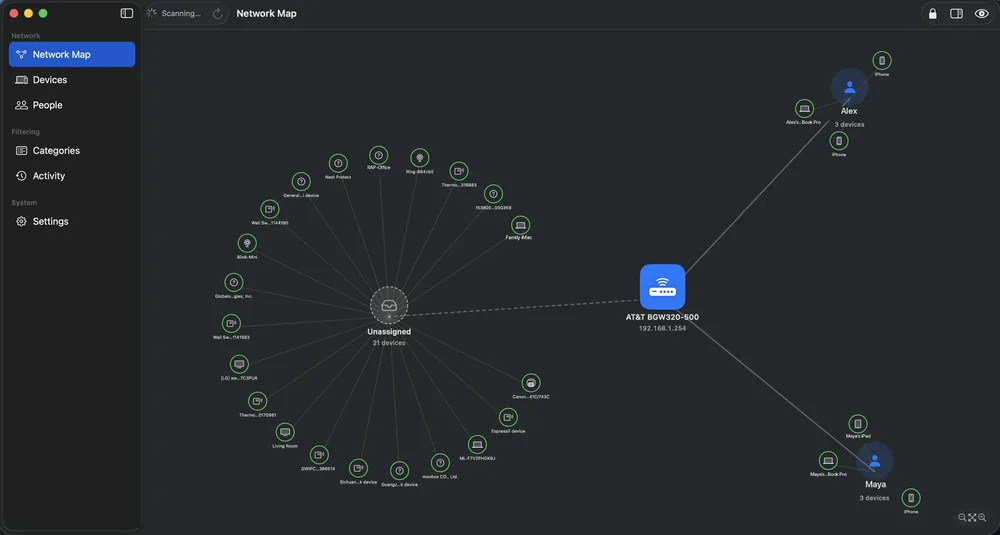
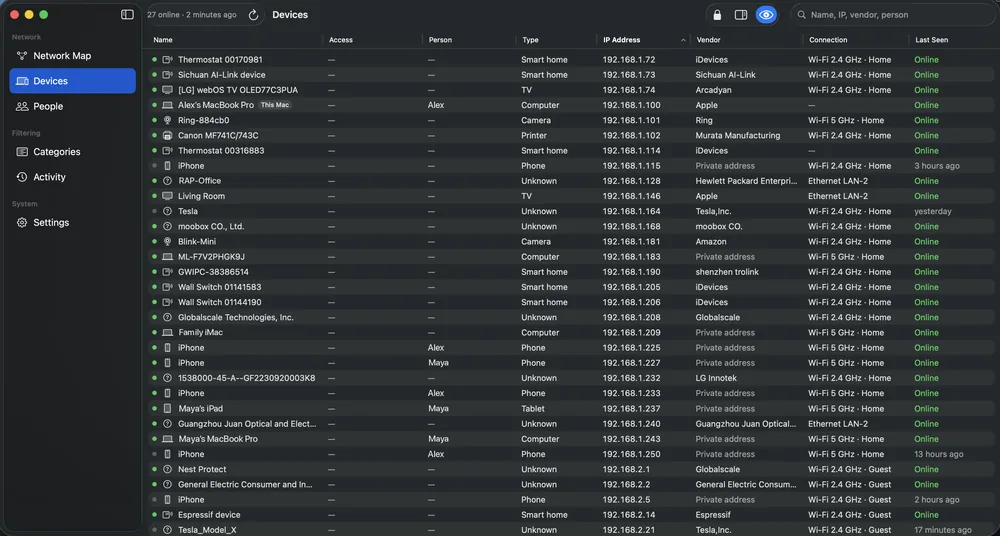
These are screenshots from a real house: one AT&T gateway, 27 devices online, two people. Only the names of the people and their devices have been changed.
Drawn for you
FamilyGate scans your network and recognises the router, here an AT&T BGW320-500, plus every phone, laptop, TV, camera, thermostat and printer on it.
Grouped by person
Each person's devices sit around them. Drag a device onto someone and their rules follow it.
Nothing slips through
Devices nobody has claimed wait under "Unassigned" and get the house default, so a new gadget is never a free pass.
Know every device
Name, type and maker for each one, from iPhones and iPads to Ring cameras, LG TVs, smart switches and the family car.
See how it connects
Wi-Fi 2.4 or 5 GHz, Ethernet, home or guest network, its IP address and when it was last online. Phones using a private Wi-Fi address are marked.
Find anything fast
Search by name, IP address, maker or person. The Mac running FamilyGate is labelled "This Mac" and can never be blocked by mistake.
One switch per category
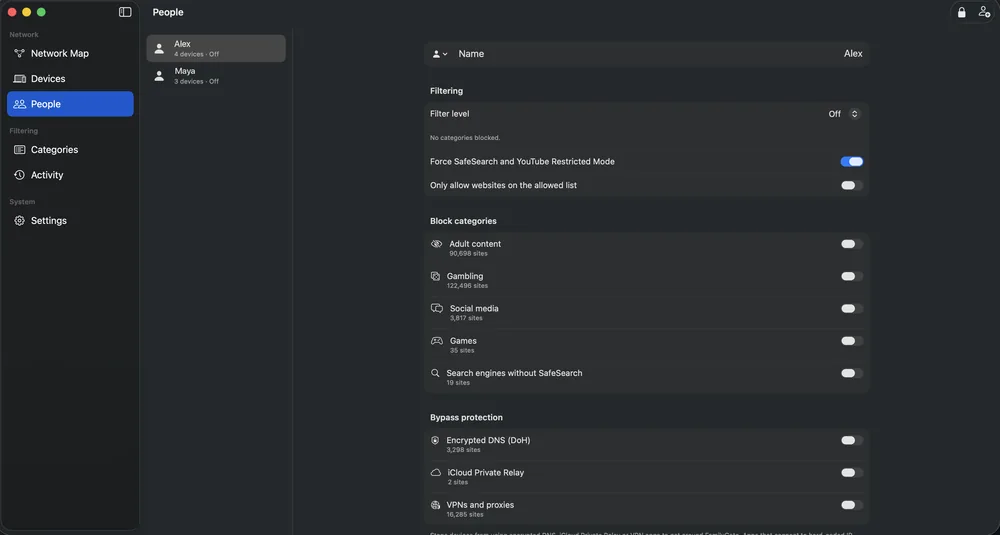
Adult content (90,698 sites), gambling (122,496), social media, games and search engines without SafeSearch. Or pick a level: Light, Moderate or Strict.
SafeSearch, or allow-list only
Force SafeSearch and YouTube Restricted Mode, or for young children, allow only the websites you've approved.
Bypass protection
Block encrypted DNS (3,298 known services), iCloud Private Relay, and 16,285 VPN and proxy services, so filters can't be switched off from the device.
Open, well-kept lists
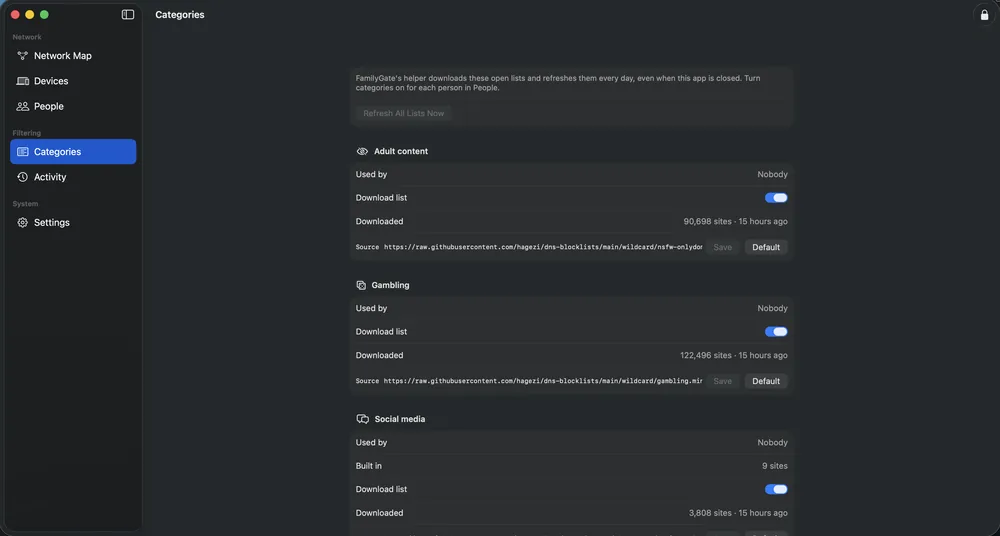
Category lists come from respected open projects (HaGeZi and StevenBlack), plus FamilyGate's own built-in additions.
Always up to date
FamilyGate downloads fresh lists every day, even when the app is closed. Each category shows its size, when it last updated, and who uses it.
Bring your own
Point any category at a different list address, or go back to the default with one click.
Your Mac becomes the gatekeeper
Every website starts with a name lookup. FamilyGate answers those lookups for your kids' devices, so it can steer them before a page ever loads.
Device by device
FamilyGate recognises each device by its network address, so a rule set for "Leo's Switch" follows that Switch, and rules for "Leo" follow all of his devices.
Smart precedence
A device rule beats a person rule, which beats the house default. Unknown devices get the default, so a new gadget is never a free pass.
Keeps going on its own
A small background service does the filtering. It starts with your Mac and keeps enforcing rules and schedules even when the app is closed.
Bedtime that actually means bedtime
Set it once and stop negotiating. FamilyGate applies schedules automatically, every day, in your time zone.
- Ready-made templates for bedtime, school hours and homework time
- Overnight windows that cross midnight, done right
- "Allow only" windows: online only between 4 and 7 pm
- Give one device its own schedule when it needs to be different
Set up in about ten minutes
A guided assistant walks you through every step and runs a live test at the end, so you know exactly which devices are protected.
Install FamilyGate
Download the app, drag it to Applications, and approve the FamilyGate filter in System Settings when asked.
Give your Mac a fixed address
The assistant recognises your router and shows how to reserve an IP address for this Mac so devices can always find it.
Add your people
Create a person for each child, choose a filter level, and drag their devices onto them on the network map.
Point devices at your Mac
Set each child's device to use your Mac for DNS, using the steps below. FamilyGate confirms each one live.
- Open Settings → Wi-Fi and tap the ⓘ next to your home network.
- Tap Configure DNS → Manual, remove the existing servers and add your Mac's address (shown in FamilyGate).
- Tap Save. In the same screen, turn off Limit IP Address Tracking if Private Relay is on.
- Lock the change with Screen Time → Content & Privacy so it can't be undone.
- Open Settings → Network & internet → Wi-Fi, then tap the gear next to your network.
- Tap Edit (pencil) → Advanced options → IP settings → Static.
- Enter your Mac's address as DNS 1 and leave DNS 2 empty.
- Under Network & internet → Private DNS, choose Off.
- Open System Settings → Wi-Fi → Details… next to your network.
- Choose DNS, remove the listed servers with −, then add your FamilyGate Mac's address with +.
- Click OK. Use a Standard account for your child so they can't change it back.
- Open Settings → Network & internet → Wi-Fi → Hardware properties.
- Next to DNS server assignment, click Edit → Manual, turn on IPv4 and enter your Mac's address.
- Set DNS over HTTPS to Off and save. Give your child a standard (non-admin) account.
- Click the clock, then Settings → Network → Wi-Fi and select your network.
- Open Name servers → Custom name servers and enter your Mac's address.
- In Settings → Privacy and security → Security, turn off Use secure DNS.
- Nintendo Switch: System Settings → Internet → your network → Change Settings → DNS Settings → Manual.
- PlayStation: Settings → Network → Settings → Set Up Internet Connection → Advanced Settings → DNS Settings → Manual.
- Xbox: Settings → General → Network settings → Advanced settings → DNS settings → Manual.
- Enter your Mac's address as the primary DNS and leave secondary empty (or the same address).
Tip: if your router lets you change the DNS server it hands out, set it to your Mac once and every device is covered automatically. Routers running OpenWrt can also block devices directly at the router.
Less arguing. More peace of mind.
One place for every device
Stop juggling Screen Time, Family Link, console apps and router menus. FamilyGate covers phones, tablets, laptops, consoles and TVs from one Mac.
No new hardware, no subscription
It works with the router and Mac you already have. No monthly fee for a cloud filter, no box to buy.
Your family's data stays home
Filtering runs on your Mac. There's no account, no company server seeing your kids' browsing, and nothing to leak.
Grows with your kids
Start Strict for a seven-year-old, move to Light for a teenager, and allow the sites they need for school. Every person gets their own rules.
Calm, predictable routines
Schedules do the enforcing, so bedtime isn't a nightly negotiation. Pause the house for dinner with one click.
Honest about its limits
FamilyGate tells you when a device stops using it, so you're never guessing whether protection is really on.
Built to protect your family, including from us.
We think a parental-control app shouldn't become one more company watching your children.
- Everything stays on your Mac. No account, no cloud service, no analytics or tracking code.
- Normal browsing is never logged. Only blocked or SafeSearch-redirected lookups are kept, for 30 days.
- No decrypting of anyone's traffic. FamilyGate works on website names only and never intercepts HTTPS.
- No network tricks. No ARP spoofing or hijacking; devices use FamilyGate because you point them at it.
- Changes need you. Rule changes are protected with Touch ID or your Mac's password.
Good to know
Does my Mac need to stay on?
Yes. FamilyGate filters the devices you point at this Mac, so it should stay on and awake: plugged in with the lid open, or connected to a display. FamilyGate can keep the Mac from idle-sleeping for you. A Mac mini makes a perfect home gatekeeper.
Do I need a special router?
No. FamilyGate works with any router, including ISP gateways that don't let you change their settings. You set DNS on each child's device instead. If you have an OpenWrt router, FamilyGate can also block devices right at the router.
Can my kids get around it?
FamilyGate filters by website name (DNS) and blocks the usual escape routes: encrypted DNS, iCloud Private Relay, and VPN and proxy services. Someone who knows how could still change a device's DNS setting back, which is why FamilyGate shows you when a device stops using it, and why we recommend locking the setting with Screen Time or a standard account.
Does it slow down the internet?
No. A lookup takes a few milliseconds on your local network, and once a site is allowed the traffic goes straight to the internet, not through your Mac.
Which DNS service does FamilyGate use for allowed sites?
Cloudflare (1.1.1.1 and 1.0.0.1) by default. You can choose another provider in Settings, and FamilyGate tries a backup if the first one doesn't answer. You can also turn on SafeSearch for devices that aren't assigned to anyone.
What happens if my Mac restarts?
The filter starts with your Mac and keeps your rules and schedules even if the FamilyGate app is never opened. You choose whether it fails safe (block until filters load) or fails open.
Why isn't it on the Mac App Store?
To filter other devices on your network, FamilyGate runs a small system service that the App Store doesn't allow. It's distributed directly, signed with an Apple Developer ID and notarized by Apple, so macOS verifies it before it runs.
Which Macs are supported?
Any Mac running macOS 14 Sonoma or later, with Apple silicon or Intel.
 FamilyGate 0.1 · 6.5 MB
Open the gate to a calmer, safer internet at home.
Free for macOS 14 and later. Set up in minutes, no account needed, and nothing ever leaves your home.